

Managing guest messages through your PMS can sometimes become overwhelming, especially while setting up and managing your WelcomeScreen experience. From Wi-Fi questions to check-in instructions and parking details, responding to every guest inquiry manually can take a lot of time.
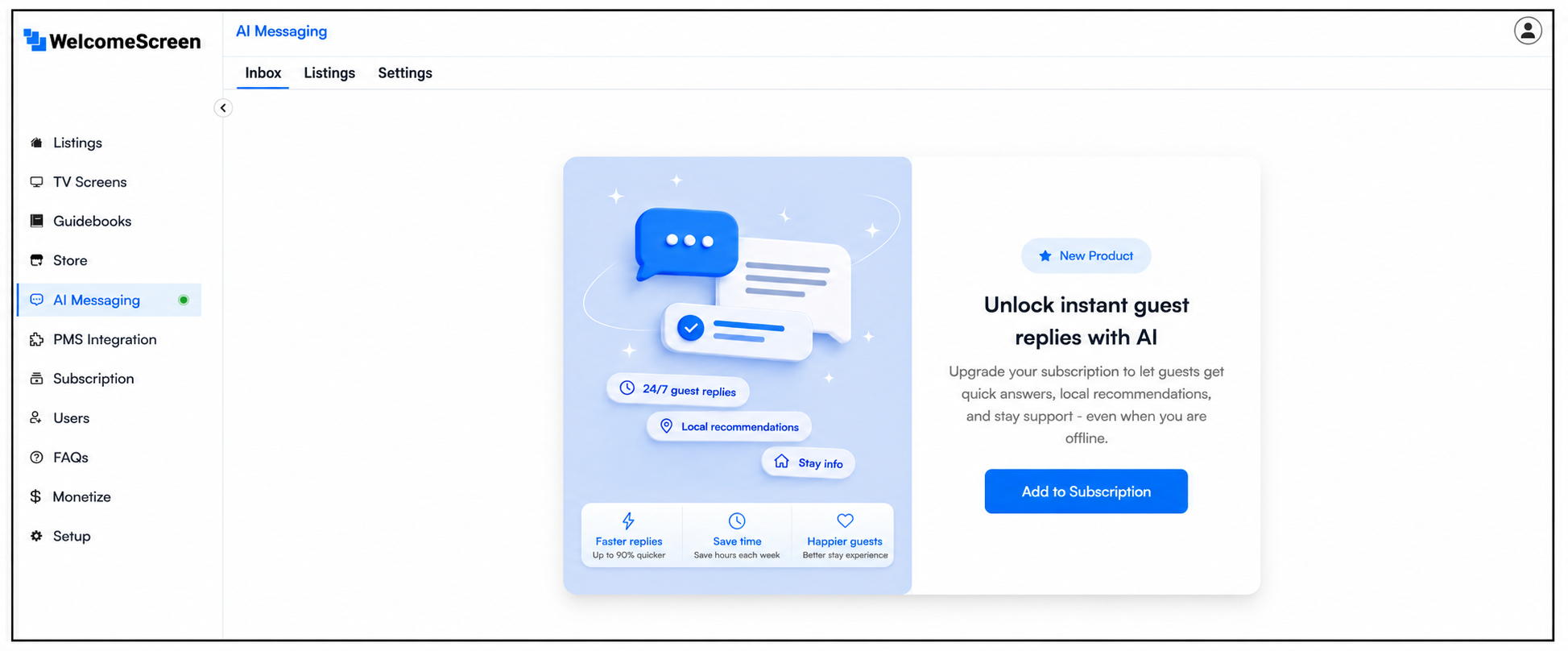
That’s why WelcomeScreen now makes guest communication easier and more organized with the new AI Messaging feature
AI Messaging helps hosts manage guest communication more efficiently by bringing all guest messages into WelcomeScreen. Messages sent through your PMS are synced instantly, allowing hosts to view and respond to inquiries from one place.
To save time, AI can automatically answer common questions about Wi-Fi, check-in details, parking, house rules, amenities, and more. If a question requires personal attention, hosts can step in and respond directly, ensuring guests always receive the support they need.
With real-time message syncing and AI-powered assistance, AI Messaging makes guest communication faster, simpler, and more efficient.
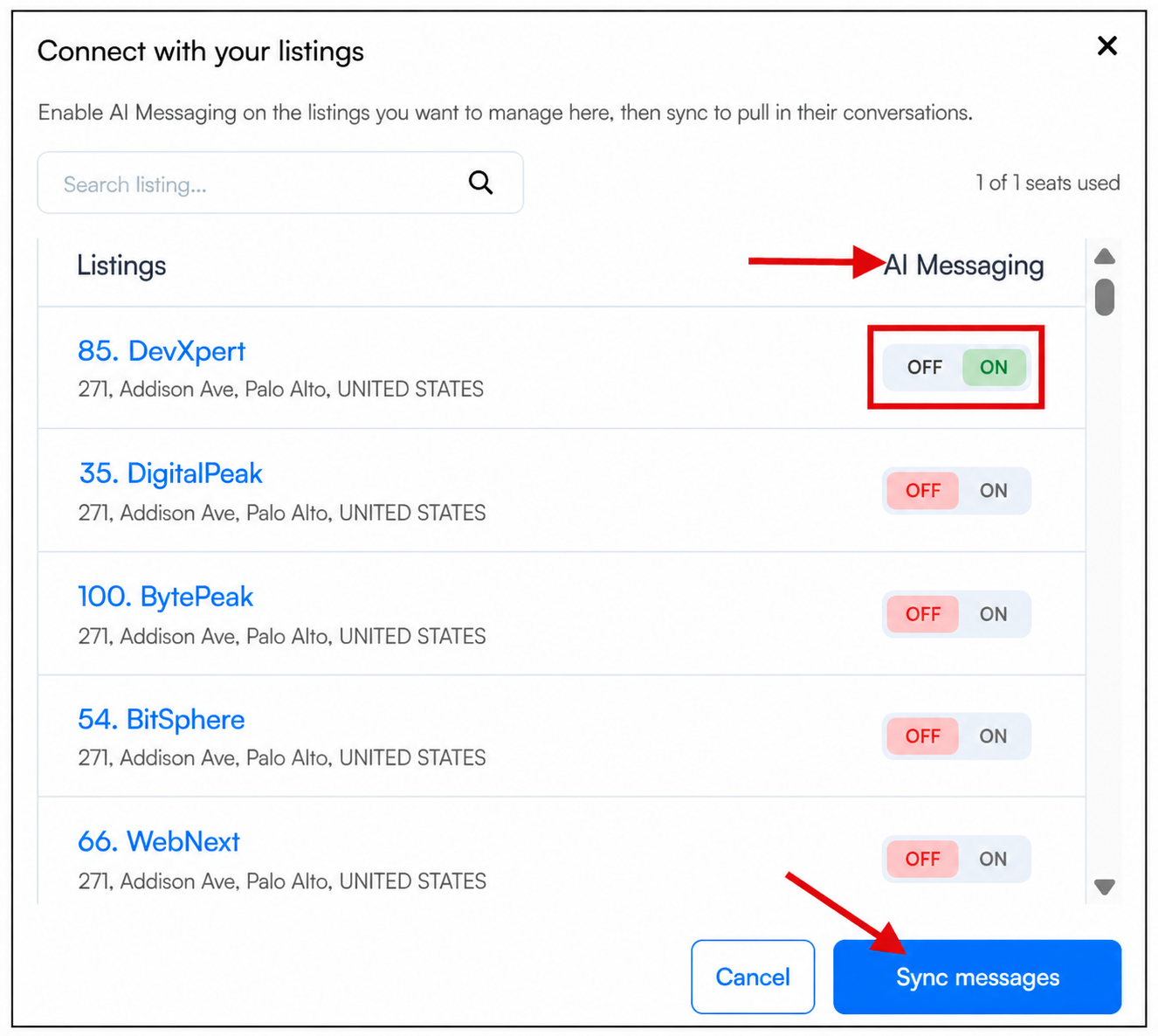
After subscribing, a Connect with your listings popup will appear, displaying all available listings connected to your account.
Use the search bar or scroll through the list to find the properties you would like AI Messaging enabled on. Turn the toggle On for each listing you want to assign an AI Messaging seat to.
In the top-right corner, you'll see a usage counter (for example, 1 of 1 seats used) showing how many subscriptions have been allocated.
After selecting your listings, click Sync Chat. This will begin syncing guest conversations from your PMS into WelcomeScreen, allowing AI Messaging to start monitoring and responding to guest inquiries.
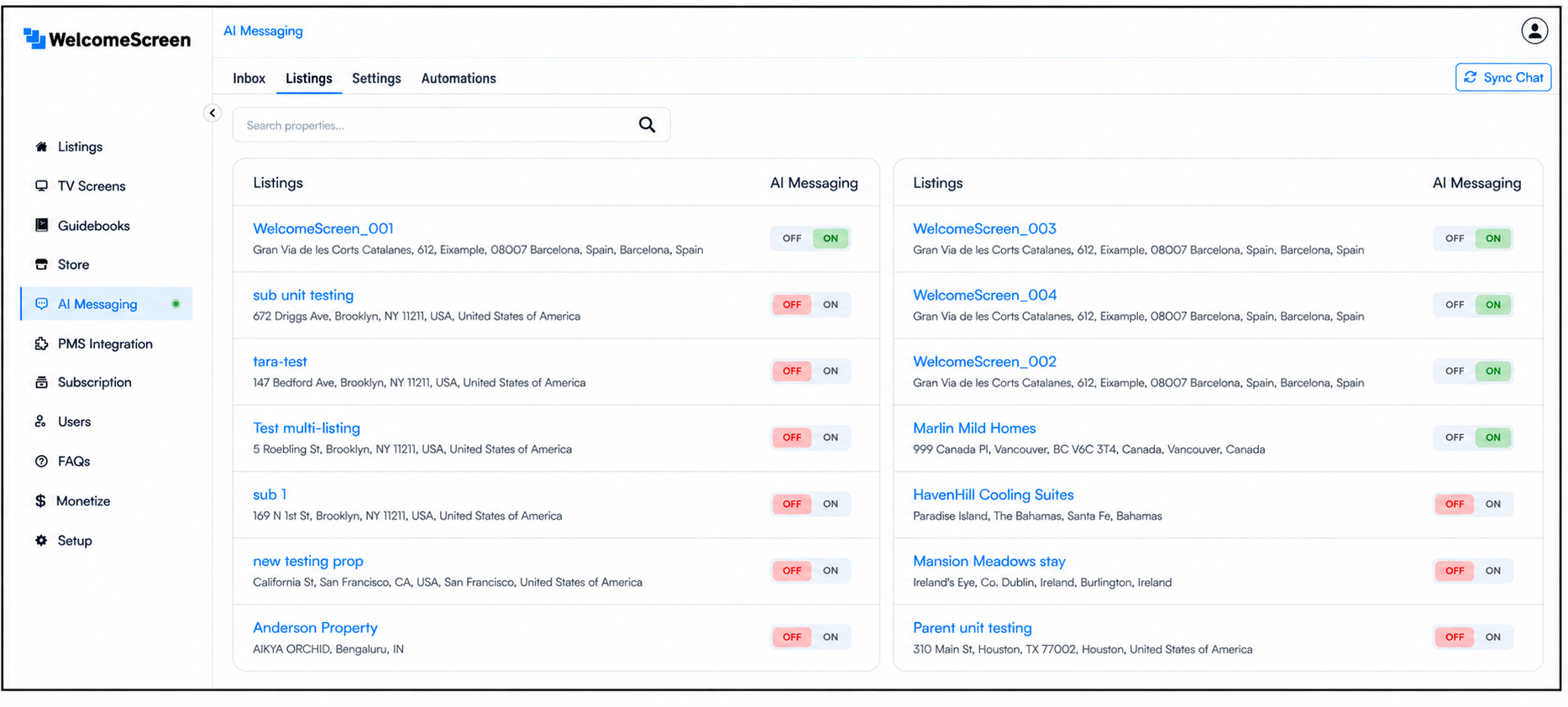
If you purchase additional AI Messaging subscriptions, you can enable AI Messaging on more listings at any time.
Navigate to the Listings tab, locate the property you would like to activate, and turn the AI Messaging toggle On.
The number of available subscriptions will automatically update based on the listings enabled.
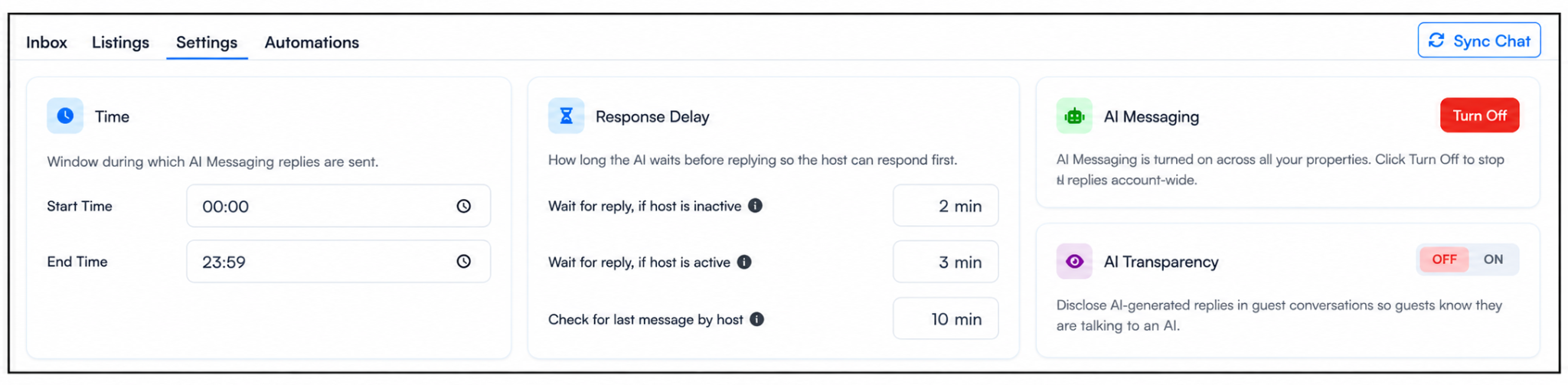
Navigate to the Settings tab to configure account-wide AI Messaging preferences.
1. Time Window
The Time section allows you to define when AI Messaging is permitted to respond to guest inquiries.
2. Transparency AI
The Transparency AI setting controls whether guests are informed they are speaking with an AI assistant.
3. Response Delay
4. AI Messaging
Use the Turn Off button to disable AI Messaging across all listings.
When disabled:
AI responses will resume once AI Messaging is turned back on.
To help ensure no important guest message is missed, WelcomeScreen supports follow-up notifications through both Slack and WhatsApp.

When a guest asks a question that requires host attention, notifications can be delivered directly to your preferred platform, allowing you to respond quickly and efficiently.
Receive guest follow-up alerts directly within your Slack workspace, helping your team stay informed and collaborate on guest communication.
Click here: Slack Notification Setup Guide
Receive real-time guest follow-up alerts directly on WhatsApp, making it easy to stay connected even while on the go.
Click here: WhatsApp Notification Setup Guide
For a step-by-step visual walkthrough, watch our YouTube video to see the process explained above in action: Ai Messaging for Airbnb Hosts
Enabling AI Messaging also unlocks AI Recommendations for each listing, automatically generating personalized local recommendations for your guests.
Click here: AI Recommendation
Manage Your Subscription
Looking to switch from your AI Messaging Plan to another subscription?
View the AI Messaging Plan Switching Guide for step-by-step instructions.
WelcomeScreen now lets you automate guest messages for key moments, including pre-arrival messages, thank-you messages after checkout, stay extension offers, and more. You can also create custom automations for your guest communication needs.
To learn more and set it up, follow the guide: AI Automation for Your Guests.
For additional assistance or questions, contact the WelcomeScreen support team at: support@welcomescreen.com


.png)