

The Requirements step allows you to define the conditions a guest must meet before entering an automation. You can use the default condition provided in the selected automation template or add your own by clicking + Add Condition.
WelcomeScreen offers six requirement conditions. You can choose a single condition or combine multiple conditions based on how you want your guest communication automation to work. You can also choose whether guests must meet all conditions(Match all) or any of the selected conditions(Match any) before continuing through the automation.

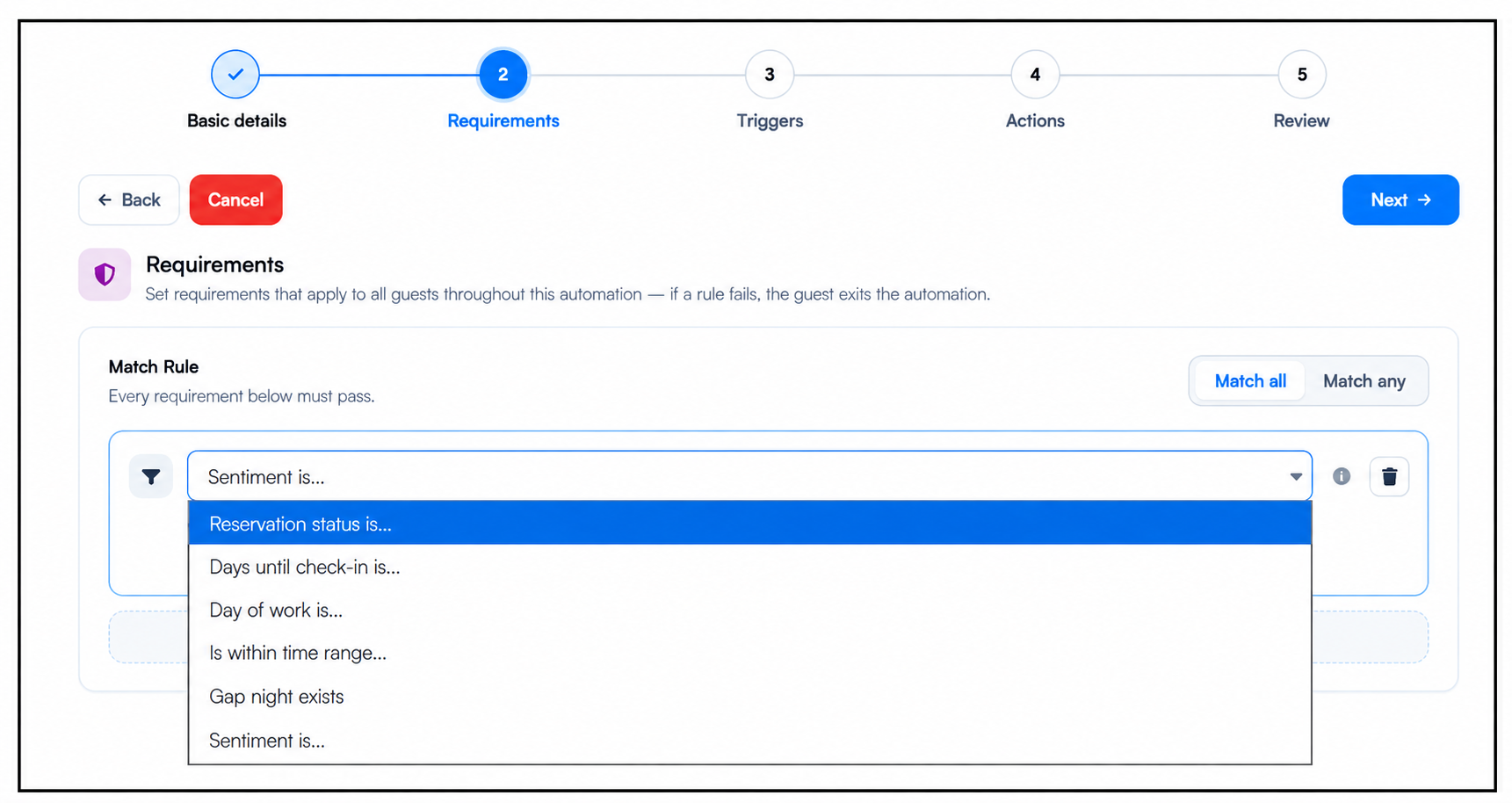
The Reservation Status condition allows you to control which guests can enter the automation based on the status of their reservation.
You can choose from three options:
You can select one or multiple reservation statuses based on your automation requirements. Once a guest satisfies the selected condition, that guest will enter the automation and move forward to the next step in the workflow.
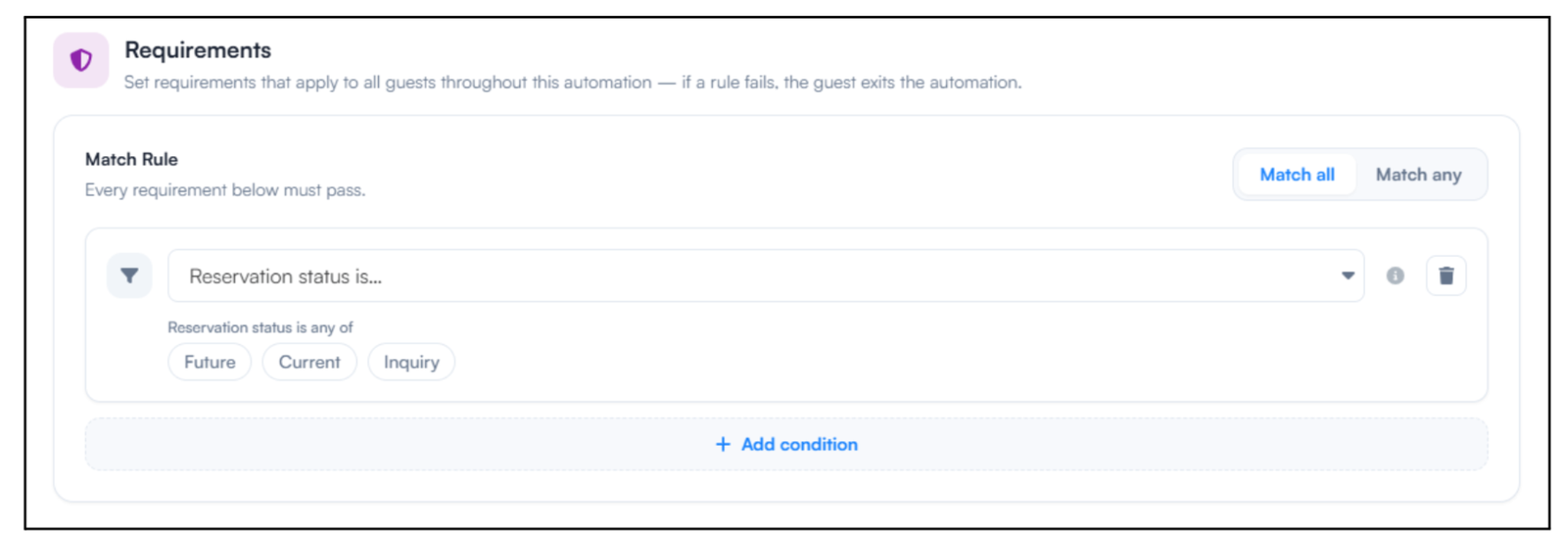
The Days Until Check-In condition allows you to set a minimum and maximum number of days before a guest’s check-in date for them to enter the automation.
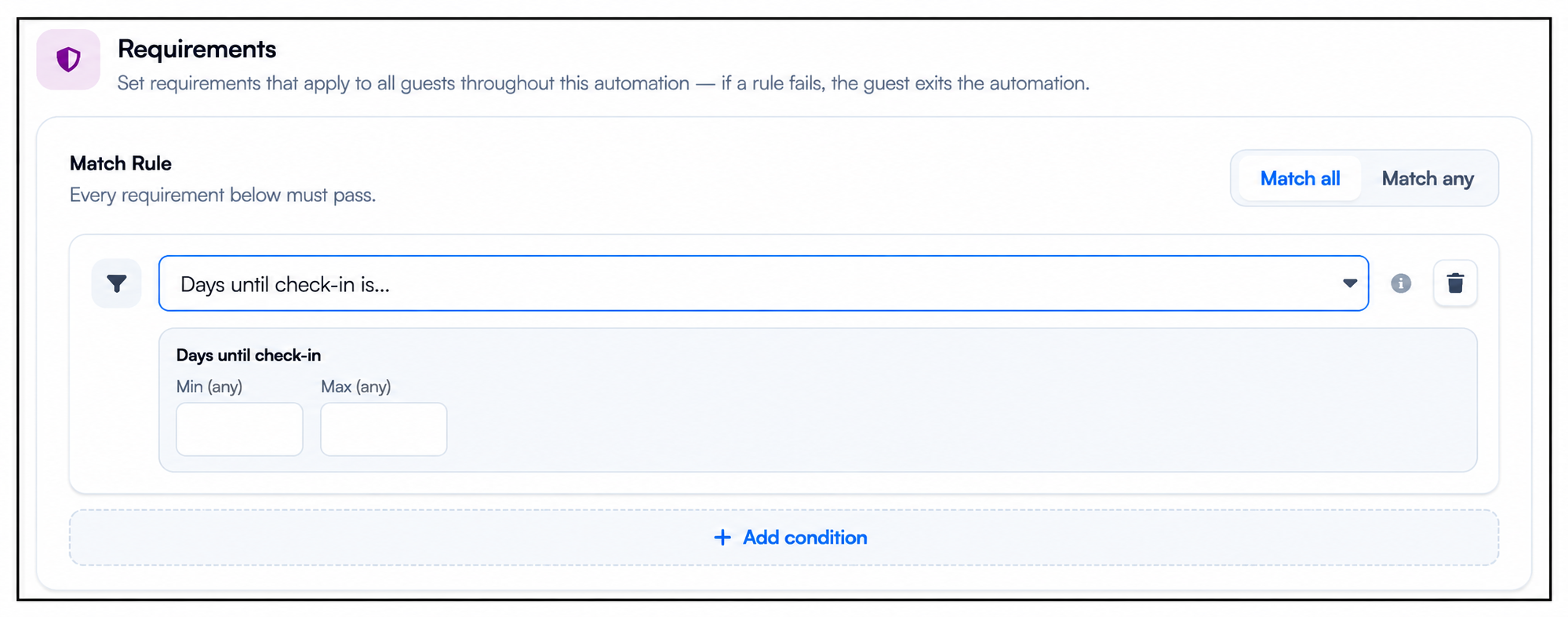
The Day of the Week condition lets you choose specific days of the week on which your automation should run. You can select one or multiple days from Monday through Sunday.
On each selected day, the automation checks the reservations that meet the other requirements. If a reservation satisfies the conditions, the guest enters the automation and the workflow continues to the next step. If the conditions are not met, the guest does not proceed for that reservation.
Example: If you select Monday and Friday, the automation will run its checks every Monday and Friday. When a reservation meets the required criteria on either of those days, the guest moves forward in the automation
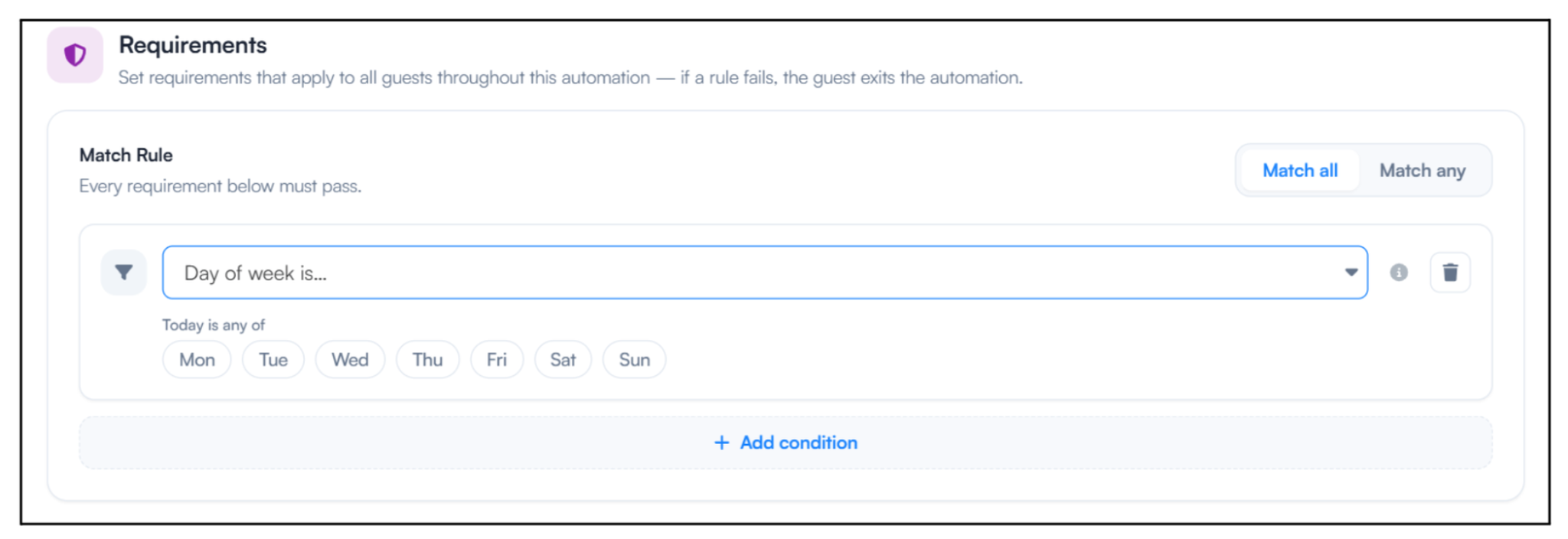
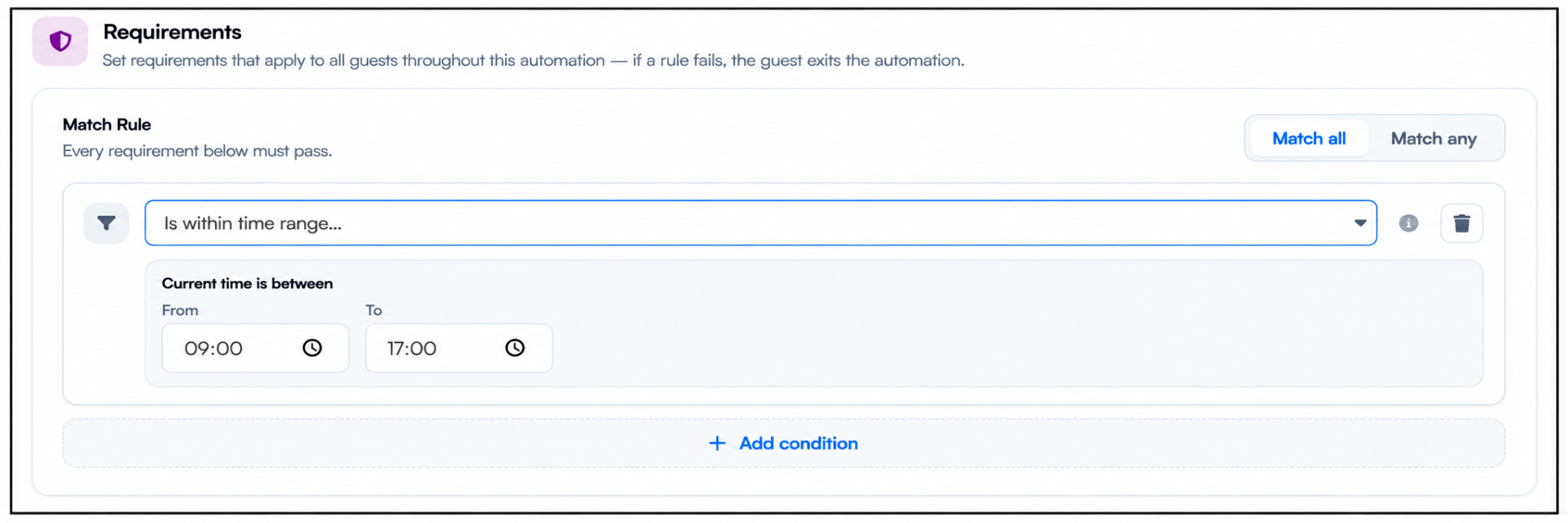
The Is Within Time Range condition lets you set a specific time range for your automation by choosing a From and To time.
During the selected time, the automation checks whether a reservation meets the other requirements. If it does, the guest enters the automation and continues to the next step.
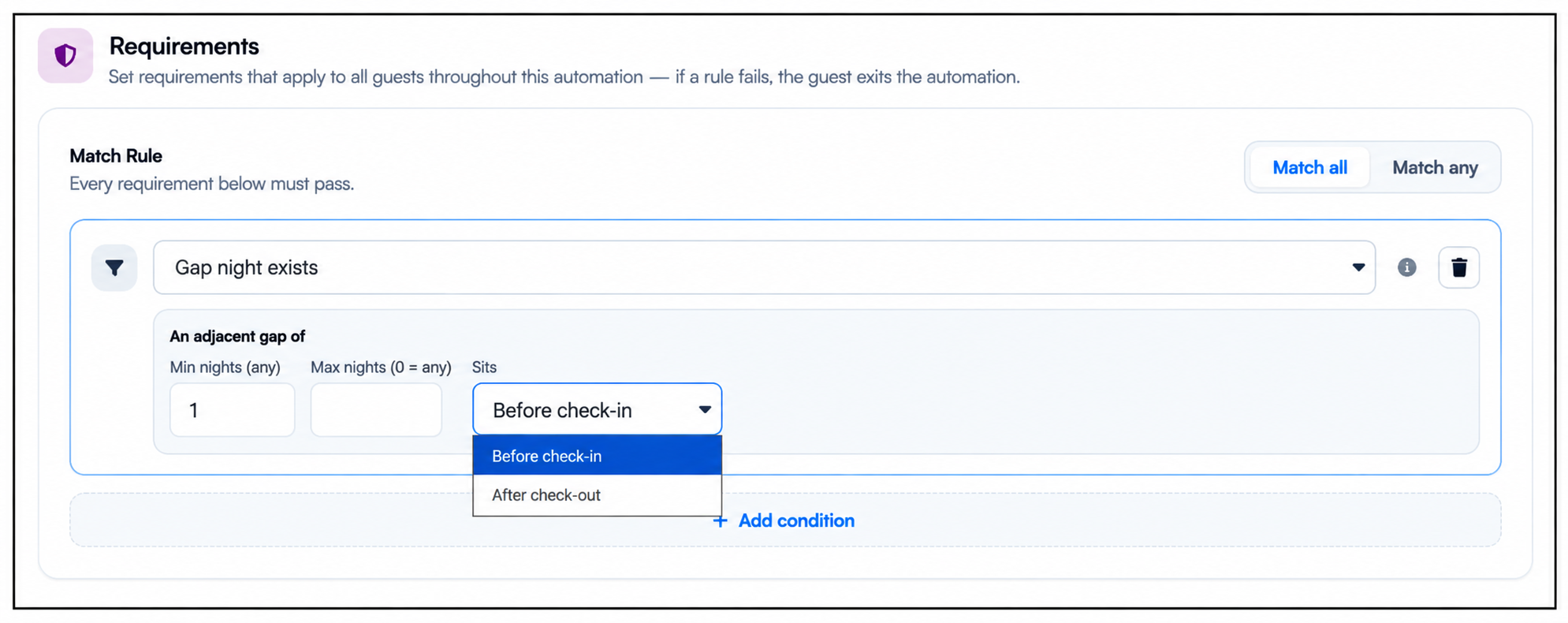
The Gap Night Exists condition lets you set the minimum and maximum number of gap nights and choose whether they should occur before check-in or after check-out.
When a reservation meets the selected gap night requirements, the guest enters the automation and continues to the next step in the workflow.
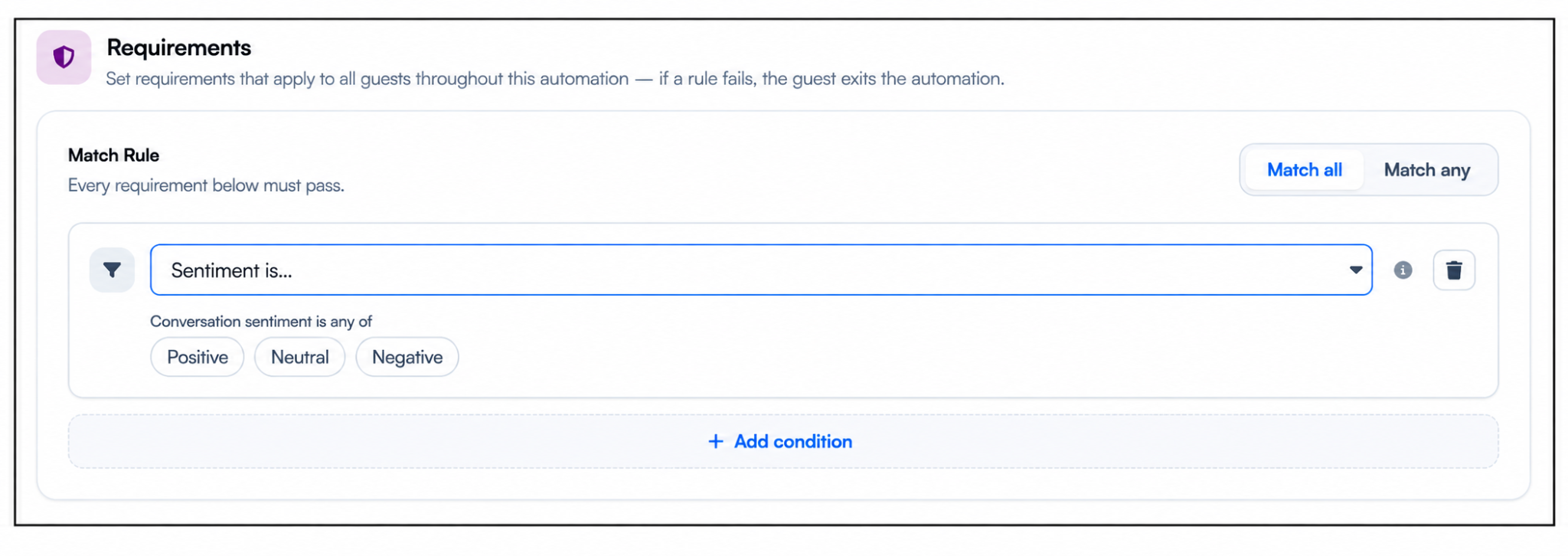
The Sentiment Is condition lets you choose the type of guest message sentiment that should trigger an automation: Positive, Neutral, or Negative.
When a guest message matches the selected sentiment, the guest enters the automation and continues through the workflow. You can create different automated responses and actions for each sentiment based on your requirements.
Now that you've configured the Requiremnt details, the next step is to set your Triggers . Learn more about setting Triggers.
For additional assistance or questions, contact the WelcomeScreen support team at: support@welcomescreen.com
Part of the same family as STR Market.


.png)