

If you’ve heard about the WelcomeScreen TV App and want to enhance your property TVs for a better guest experience, this simple guide will help you get started. Follow these easy steps to sign up, set up your account, and create a personalized, professional welcome experience for your guests. This guide ensures a smooth onboarding process and helps your property stand out in the hospitality industry.
Visit the WelcomeScreen website and click the “Start Free Trial/ Sign up” button to create your account. Simply follow the on-screen instructions, and you’ll be ready to start using the platform in minutes. By signing up, you gain access to innovative hospitality software designed to improve guest engagement.
After signing up, select the subscription plan that best fits your hotel, vacation rental, or property management business to deliver a seamless, professional, and welcoming guest experience.
Selecting only the TV App places you in the Standard Plan, providing a personalized in-room welcome and essential guest information.
Selecting only the Digital Guidebook places you in the Guidebook Plan, giving guests easy mobile access to house details and local tips.
Selecting the Pro Plan activates both the TV App and Digital Guidebook, providing a complete digital guest management solution that seamlessly combines in-room and mobile experiences.
Once you’ve made your selection, click Continue to get started.
.png)
Next, you’ll be redirected to the payment page to enter your billing information. You can pay using credit cards, debit cards, Apple Pay, or other supported methods. After entering your details, click “Start Trial” to proceed.
Once your account is created, connect WelcomeScreen with your Property Management System (PMS) to streamline your property management workflow. This integration automatically syncs your listings, reservations, and guest details, reducing manual data entry and saving valuable time. By keeping your information up to date in real time, WelcomeScreen helps you deliver a seamless, accurate, and personalized guest experience across all connected devices.
If you’re not currently using a PMS, you can still manage your listings easily by adding them manually. WelcomeScreen's user-friendly interface allows you to enter and update property details quickly, ensuring your guests receive the same high-quality, professional experience.
If you are using a PMS, click “Sync Listings”, and import your listing details automatically. If not, click “Add Listings” and enter the required information manually. This step allows you to customize the platform for your business.
After adding your Listings, go to the Listings section and select the listing you want to configure by clicking the Edit button. This section allows you to customize your in-room TV display and digital guest experience to match your brand and hospitality standards. From here, you can adjust screen settings, choose display themes, and upload high-quality images or videos to create an engaging and visually appealing presentation.
You can further personalize your listing profile by updating the background image and music, adding your logo and website details, and entering important guest information such as Wi-Fi credentials, contact details, and service instructions. You may also highlight nearby attractions, restaurants, and local events to help guests explore the area. Please note that these features are available only in the Second and Fourth layout options.
All the settings you configure in this section play a vital role in delivering a consistent, professional, and personalized guest experience.
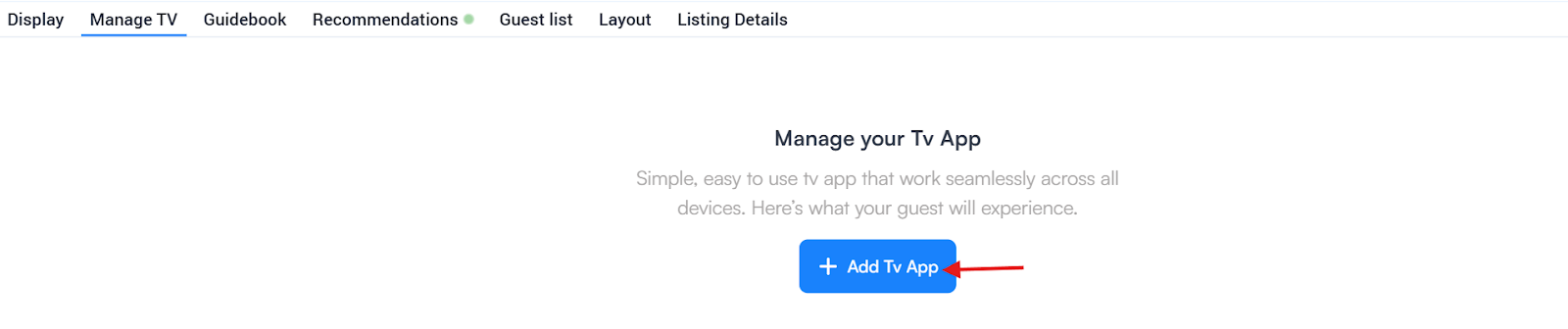
Go to the Manage TV tab and click “+Add TV App” to generate a One-Time Password (OTP). Use this OTP to complete your TV setup and link it to the WelcomeScreen system. This ensures all your configured content displays smoothly, providing a personalized and engaging guest experience on your in-room TV.
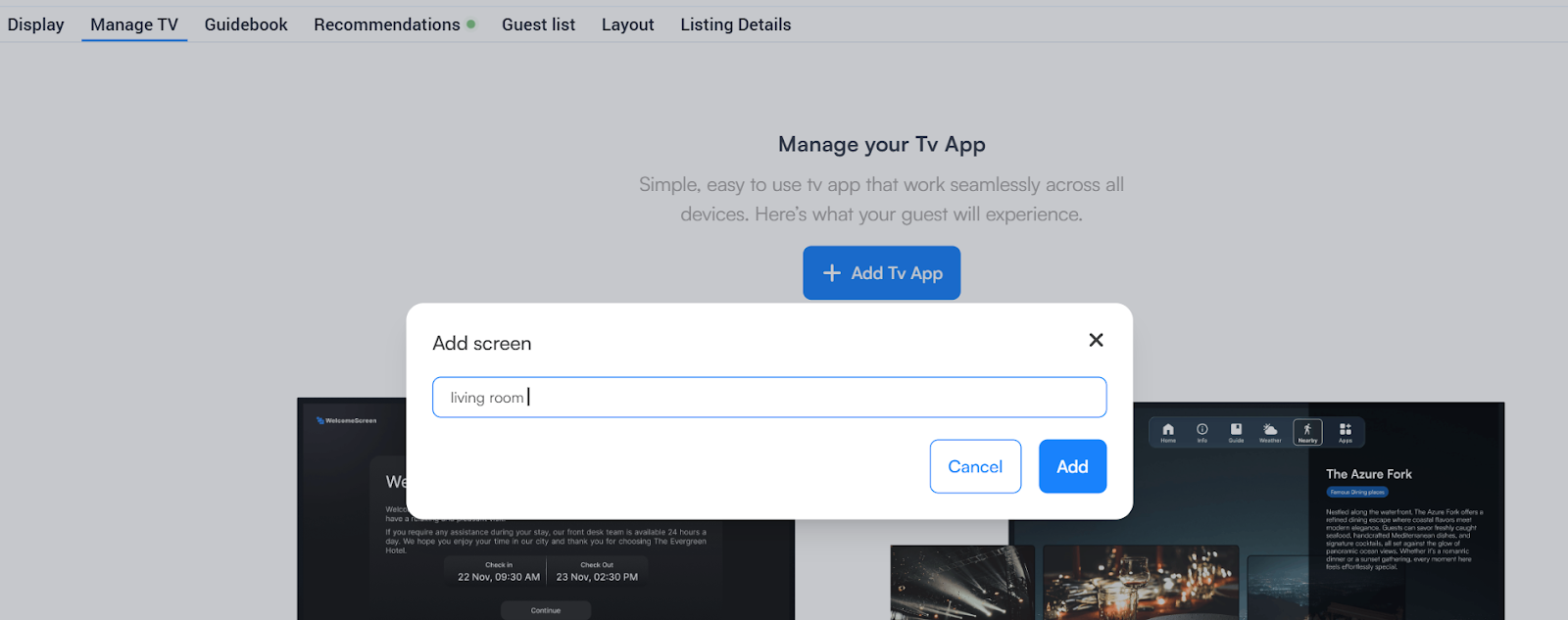
To connect additional TVs, simply click “+Add New” again to generate a new OTP for each device.
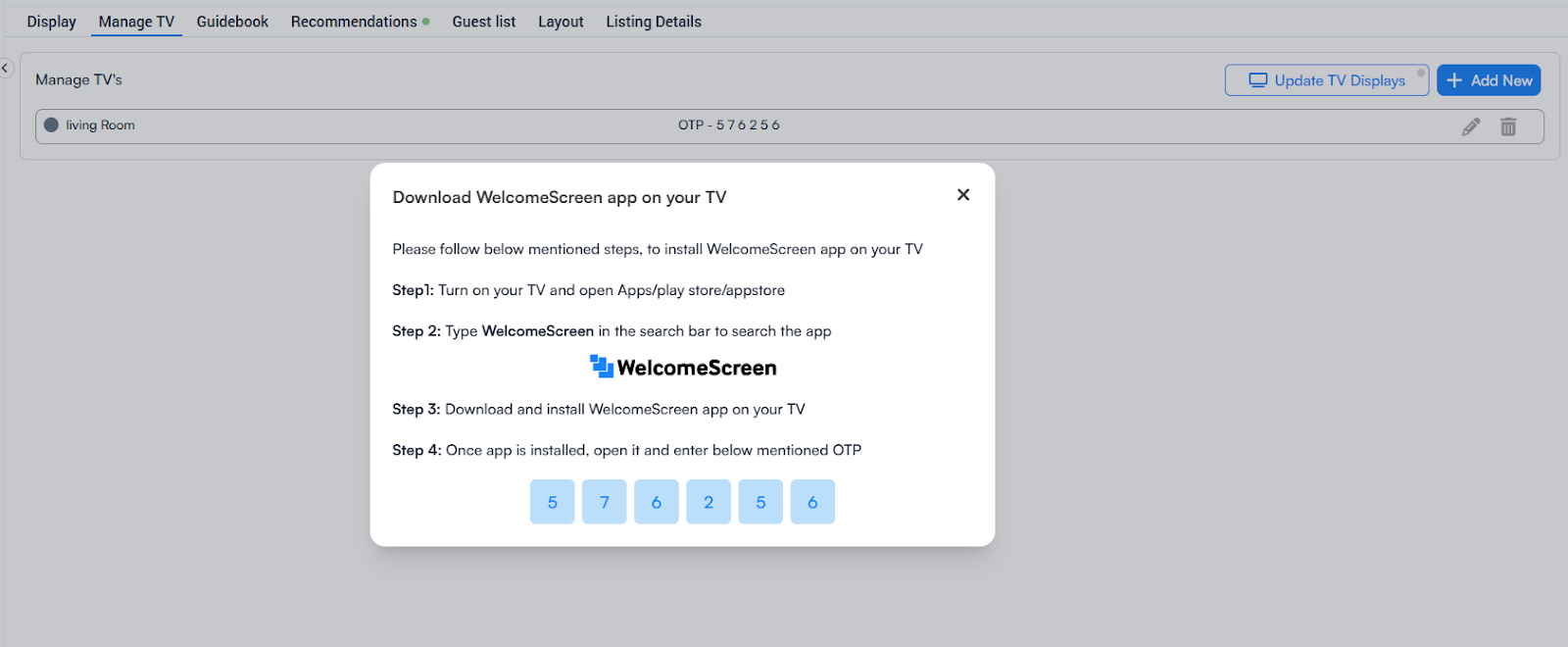
You’re all set! You can now customize your content to reflect your brand and delight your guests. Add images, videos, important messages, and local attractions to create a unique and engaging hospitality experience.
Need help installing the app? Check out our step-by-step installation guide for easy setup.
If you have any questions or need assistance, contact us at support@welcomescreen.com.
Start creating memorable guest experiences today with the WelcomeScreen TV App!
.jpeg)
.png)
.png)


.png)